
What Actually Makes a Website Fast? Hosting, Images, Caching, Code & More
- Website Strategy & Development
- October 6, 2026
- 13-minute read
A slow website can be frustrating, but diagnosing one is not always as simple as it seems.
Sometimes the hosting environment is struggling. Sometimes the server is fine, but a large image is delaying the first meaningful content on the page. A plugin might be making expensive database requests. A third-party script might be keeping the browser busy. Caching may be poorly configured—or missing entirely.
And sometimes several smaller issues are working together.
That is why website speed is better understood as the result of a system rather than a single setting, plugin, or score. If a website feels slow, the most useful question is not immediately, “What should we install?” or “Do we need better hosting?”
It is:
Where is the delay actually happening?
Once that is understood, improving performance becomes much more deliberate.

Start With Measurement, Not Assumptions
Website performance can be measured in several ways, and those measurements do not always tell exactly the same story. Google’s PageSpeed Insights, for example, can show both field data gathered from real Chrome users and lab data generated through Lighthouse under simulated conditions.
That distinction matters.
A website might load quickly on a powerful desktop computer connected to high-speed internet while performing very differently for someone on an older phone using a mobile connection. Likewise, one Lighthouse test should not automatically be treated as the universal speed of the website. Google’s current Core Web Vitals focus on three primary areas:
Largest Contentful Paint (LCP): how quickly the main visible content loads.
Interaction to Next Paint (INP): how responsive the page feels when someone interacts with it.
Cumulative Layout Shift (CLS): how visually stable the page remains while loading.
These measurements are useful, and Core Web Vitals can contribute to how Google evaluates page experience. But performance optimization should not become a pursuit of a perfect score for its own sake. The objective is a fast, responsive experience for actual visitors—not simply turning every number green.
Here’s what you should be measuring
Hosting Sets the Foundation
Before a browser can display a website, the server has to begin responding. One useful measurement here is Time to First Byte, or TTFB. It measures the time between beginning a request and receiving the first byte of the response. Because that happens before meaningful page rendering can begin, a consistently slow server response can put the rest of the loading process at a disadvantage from the start.
Hosting can therefore have a very real effect on performance. Available CPU and memory, storage speed, PHP and database configuration, server load, software versions, traffic volume, and the distance between the server and visitor can all contribute. But that does not mean every slow WordPress website needs a more expensive hosting plan.
I have worked with sites where server resources were clearly part of the problem, but I have also seen capable hosting environments blamed for issues that were actually happening farther up the stack. Better hosting cannot make inefficient code disappear, shrink oversized images, or eliminate unnecessary scripts. It provides the foundation. The website still has to use that foundation efficiently.
Images Can Be Beautiful Without Being Heavy
Photography and visual design are important parts of many websites, but images are also one of the easiest ways to add unnecessary weight to a page. The problem is not simply whether a website uses images. It is whether those images are appropriately sized and delivered for the way they are actually displayed. A photograph uploaded directly from a modern camera or phone may contain far more resolution than a website needs. Serving a 4,000-pixel image into a relatively small content area forces the visitor to download information they may never see.
Good image optimization considers dimensions, compression, responsive image delivery, file format, and whether an image should be loaded immediately or deferred. Modern formats such as WebP and AVIF can often provide strong visual quality at smaller file sizes than older formats such as JPEG or PNG. Images can also become the Largest Contentful Paint element on a page, which makes their delivery especially important to how fast a page feels. Lazy loading can help by postponing images farther down the page until they are needed.
But even good techniques can be applied incorrectly. Aggressively lazy-loading an important hero image near the top of the page can delay something the visitor needs immediately. Performance optimization is often less about turning every available feature on and more about using the right technique in the right place.
Caching Helps the Website Avoid Repeating Work
Caching is one of the most powerful tools available for improving WordPress performance, but the term can describe several different processes. The simplest way to think about caching is: If useful work has already been done, avoid doing it again unnecessarily. Page caching can store a previously generated version of a page instead of asking WordPress, PHP, and the database to rebuild it for every visitor.
Browser caching allows previously downloaded resources such as images, CSS, and JavaScript to be reused instead of downloaded again immediately. Persistent object caching can reduce repeated database requests by storing commonly requested information somewhere faster to retrieve. That is why “install a caching plugin” is incomplete advice.
Caching can significantly improve performance, but it primarily helps the website avoid repeating work. If the page itself is excessively heavy, full of unnecessary scripts, or dependent on slow third-party services, caching does not automatically solve those underlying problems.
Plugins Matter—But Counting Them Is Not Enough
One of the most common pieces of WordPress performance advice is: You have too many plugins. Sometimes that may be true. But the raw number does not tell the whole story. A lightweight plugin that performs a focused task may have very little effect on front-end performance. Another plugin might introduce expensive database queries, load large JavaScript libraries across every page, contact external services, or run background processes continuously.
What matters is what the plugin actually does.
The same principle applies to themes and page-building systems. Design flexibility, animation, advanced layouts, dynamic content, integrations, and interactive functionality can all be worthwhile. But every feature has some cost. A fast website is not necessarily the website with the least code. It is the website where the code being loaded is justified by what it contributes.
Third-Party Tools Can Quietly Add Up
Modern business websites rarely operate in isolation. Analytics, tag managers, embedded video, chat systems, maps, scheduling platforms, advertising scripts, social widgets, external fonts, and other third-party services can all contribute to the overall workload of a page. Individually, each may make perfect sense. Together, they can become a substantial portion of the work the browser has to perform.
Third-party scripts can introduce additional network requests, processing time, rendering delays, and dependencies on servers outside the website owner’s control. That does not mean a business should remove useful services simply to improve a performance score.
Instead, ask a better question: Is this tool providing enough value to justify what it adds to the page? That is often a more useful performance decision than trying to shave milliseconds from something the business genuinely needs.
The Database and Backend Matter Too
Not every performance problem is visible in the browser. WordPress depends heavily on its database, and over time themes, plugins, revisions, settings, scheduled processes, and accumulated configuration data can create additional work. Persistent object caching can help reduce repeated database requests, but a healthy backend still matters.
The important takeaway for most business owners is simple: A website can look perfectly normal on the front end while unnecessary work is happening behind the scenes. That is another reason performance issues should be diagnosed rather than guessed at.
A CDN Can Help, but It Is Not a Repair Tool
A Content Delivery Network, or CDN, can distribute website assets across infrastructure located closer to visitors. That can reduce delivery distance, reduce load on the origin server, and make static resources easier to distribute efficiently.
But adding a CDN to an inefficient website does not suddenly make the underlying website efficient. It may simply help deliver the existing site faster. The same principle applies to many performance technologies: they work best when they are part of a well-configured system.
Your Website Does Not Have One Universal Speed
A business owner might open a website at the office and see it load almost instantly. That is useful information. It just is not the whole picture.
Visitors may be using older phones, slower processors, crowded wireless networks, mobile connections, different browsers, or networks hundreds or thousands of miles from the server. That is one of the reasons real-user performance data is valuable.
PageSpeed Insights can provide information about how actual users experience a page when sufficient field data exists, while Lighthouse provides controlled lab testing for diagnosis.
Both have value.
Neither should be interpreted without context.

Managed WordPress Website Solutions
Are You An SMB Looking for a Complete Digital Foundation?
Managed WordPress Website Solutions combine website development, branding, SEO, technical infrastructure, and ongoing support into a structured package designed to help businesses launch and grow with confidence. Not every business requires a fully custom engagement. For those looking for a proven framework that combines the most commonly requested services into a streamlined solution, MWWS packages offer a practical starting point. The only question is how much functionality, visibility, and growth support your business is ready for.
Complete Website Solution
Best for SMBs that need multiple functionality layers, local visibility support, social media setup, and app-like website capabilities.
Advanced Website Solution
Best for SMBs that need additional functionality to support operations, sales, scheduling, education, or customer interaction.
Foundation Website Solution
Best for SMBs that need a polished professional website, brand foundation, SEO-ready structure, and essential digital tools.
9
things that make a website fast

A Capable Hosting Environment
1.
The common problem: The website is competing for inadequate or heavily constrained server resources, leading to slow or inconsistent server response times. A useful first check is whether TTFB remains slow across several tests and locations, particularly on pages that should otherwise be relatively lightweight. The important upgrade is not simply paying more. It is gaining sufficient and predictable resources.
Free starting point: WebPageTest can help compare response behavior from different locations, devices, and connection conditions. Cloudflare’s free tier can also provide CDN, DNS, caching, and security features that may reduce some of the work reaching the origin server.
Paid or advanced option: If testing consistently points to the origin, consider properly resourced managed WordPress hosting or a VPS environment with adequate CPU, memory, PHP capacity, caching, and server-level visibility.
A Server Configured Appropriately for the Website
2.
The common problem: The hosting environment has enough capacity, but WordPress or the server software is not using it efficiently. Possible causes include outdated software, insufficient PHP resources, slow database queries, missing opcode caching, or one application process consuming disproportionate resources. Start with WordPress Site Health, then move to deeper diagnostics if the symptoms persist. If the server itself appears healthy but WordPress consistently takes too long to generate pages, the problem is probably farther up the application stack.
Free option: Query Monitor is one of the most useful WordPress diagnostic tools available. It can expose slow database queries, PHP errors, HTTP requests, scripts, styles, and the plugin or theme responsible for them.
Paid or advanced option: Application-monitoring platforms such as New Relic can provide deeper transaction-level insight across PHP, database activity, and application behavior.
Images Delivered Efficiently
3.
The common problem: Large JPEGs or PNGs are uploaded directly from cameras, phones, stock libraries, or design exports and displayed at a fraction of their original dimensions. For most photographic website imagery, WebP and AVIF are good modern formats to aim for. SVG remains useful for appropriate vector assets such as logos and simple icons. Dimensions matter just as much as format.
A 4,000-pixel photograph does not need to be delivered at full size if it occupies a 900-pixel content column. Whichever tool you use, inspect your hero image separately. Automatically lazy-loading the image responsible for LCP can sometimes make the apparent loading experience worse.
Free or low-cost option: Imagify offers image compression, resizing, and modern-format conversion with a limited free allowance.
Paid option: ShortPixel is another strong choice for larger media libraries and supports bulk optimization, resizing, and WebP or AVIF generation.
Caching That Reduces Repeated Work
4.
The common problem: WordPress rebuilds essentially the same page for every anonymous visitor, or browsers repeatedly download files that could have been reused. Before installing anything, determine whether your host is already providing server-side or page caching. Multiple caching systems trying to perform the same job can create conflicts rather than improvements.
Also test while logged out or in a private browser window because administrators are commonly excluded from normal page caching. The goal is not to install as many performance plugins as possible. It is to understand which caching layer is responsible for what.
Free option: WP Super Cache remains a straightforward free option for generating static versions of WordPress pages.
Paid option: WP Rocket combines page caching with cache preloading, browser caching, and several front-end optimization tools.
Themes and Plugins That Earn Their Resource Cost
5.
The common problem: A plugin solves one business problem but loads scripts, styles, database queries, or background processes across far more of the website than necessary. Do not begin by counting plugins. Begin by identifying which plugins or theme features are consuming resources. But optimization should not become life support for a fundamentally poor plugin. If one extension consistently creates disproportionate overhead, replacing it may be the cleaner solution.
Free option: Query Monitor can help group database activity, scripts, styles, and HTTP requests by the plugin or theme responsible.
Paid option: Perfmatters provides more granular control over unnecessary scripts, WordPress features, unused CSS, and where assets are allowed to load.
JavaScript and Third-Party Services Used Intentionally
6.
The common problem: Analytics, chat, maps, video embeds, social widgets, tracking platforms, scheduling tools, and marketing scripts accumulate over several years. No single tool appears especially expensive until they are measured together.
Free option: Chrome DevTools can help identify first- and third-party activity, while its Coverage tools can show JavaScript and CSS that are downloaded but not used during the tested experience. A simple audit may reveal that a service used on one page is loading code across the entire site.
Paid option: Perfmatters and similar optimization tools can delay selected JavaScript or prevent certain assets from loading where they are not needed.
Use those controls carefully. Delaying the wrong script can interfere with forms, tracking, navigation, payments, or other interactive functionality. Always retest the actual user journey afterward.
A Healthy Database and Backend
7.
The common problem: Years of plugin installations, revisions, transients, settings, scheduled processes, and abandoned data create a database that contains considerably more than the active website requires. The safest place to begin is diagnosis—not clicking a button labeled “Delete Everything Unnecessary.” Look for unusually slow queries, excessive autoloaded data, recurring background processes, and tables left behind by plugins that are no longer used.
For deeper diagnosis rather than cleanup, Query Monitor can again help identify expensive database activity and the code responsible. Before performing bulk database cleanup, make a verified backup first. Database optimization is one area where being conservative is considerably better than discovering afterward that something important was considered unnecessary.
Free option: WP-Optimize provides database-cleaning tools alongside several other performance functions.
Paid option: WP-Optimize Premium adds additional automation and control.
Code and Layouts That Do Not Ask the Browser to Do Unnecessary Work
8.
The common problem: A visually simple page may still contain a large DOM, deeply nested containers, unused CSS, sitewide JavaScript, elaborate animations, sliders, background video, or widgets that introduce substantial supporting code. Page builders are not automatically slow, and hand-coded websites are not automatically fast.
What matters is what ultimately reaches the browser. Before adding another optimization layer, however, look at the page itself. Removing an unnecessary slider, animation, widget, oversized section, or duplicated component can sometimes be cleaner than finding increasingly complicated ways to deliver it faster.
Free option: Chrome DevTools Coverage can identify JavaScript and CSS that were downloaded but unused during a test. Lighthouse and PageSpeed Insights can then help highlight render-blocking resources and other likely bottlenecks.
Paid option: Perfmatters and WP Rocket provide controls for unused CSS, delayed JavaScript, asset loading, and other front-end optimizations.
Treat those reports as diagnostic tools rather than delete lists.
Measurement Based on Controlled Testing and Real-World Experience
9.
The common problem: A website owner runs PageSpeed Insights once, sees a disappointing score, and begins changing everything until the number improves. Performance testing works better when it is repeatable.
Start with PageSpeed Insights to compare lab data with available real-user information. Use WebPageTest when you want more control over location, browser, device, connection conditions, waterfalls, and repeated runs. Then consider real-user Core Web Vitals when sufficient field data exists.
Free option: PageSpeed Insights and WebPageTest together provide an excellent no-cost testing toolkit.
Paid option: Continuous-monitoring platforms such as DebugBear can combine scheduled synthetic testing with real-user and Chrome UX data so changes can be observed over time instead of discovered months later.
That distinction matters: Testing tells you what happened today. Monitoring helps tell you when something changed.
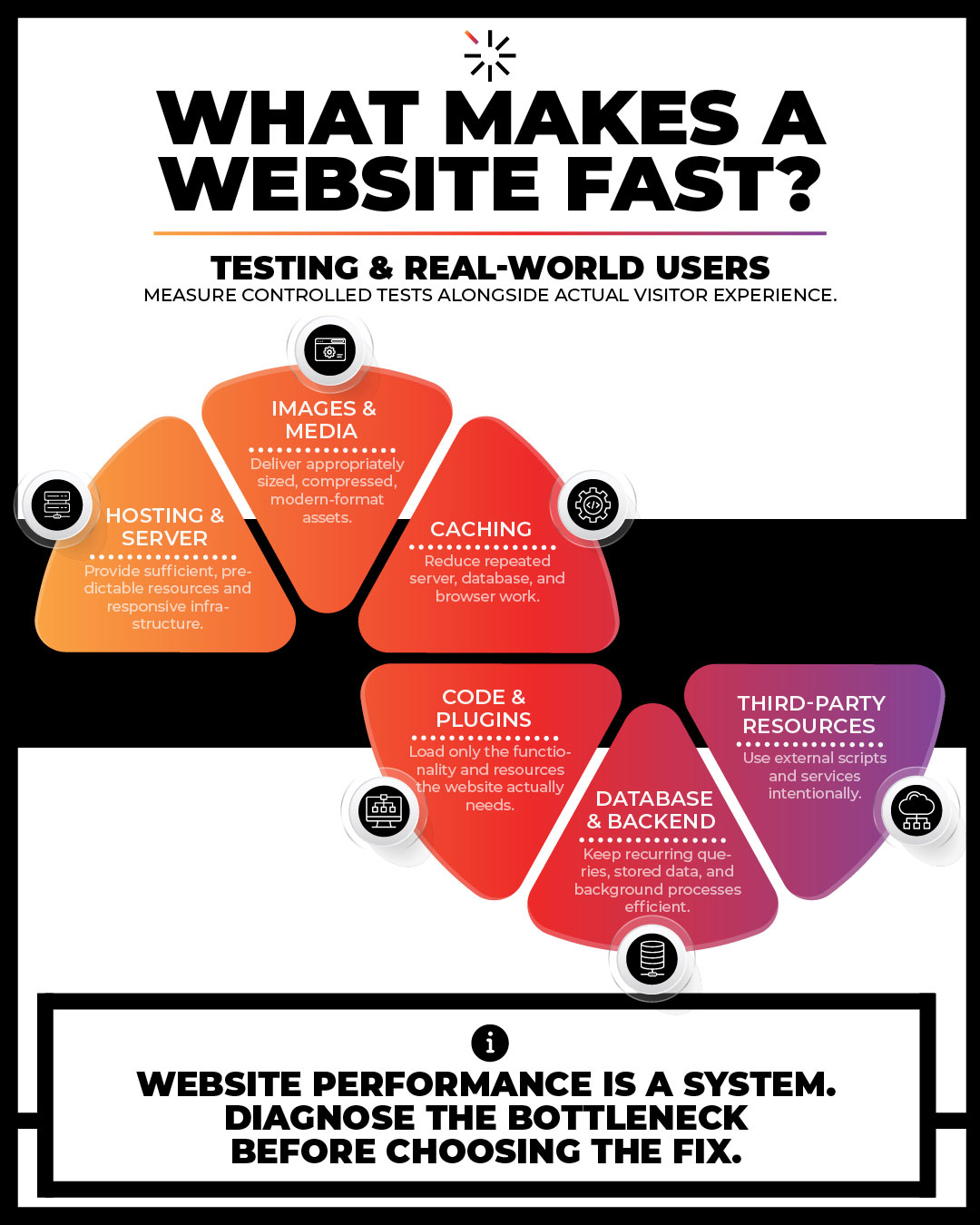
Diagnose Before You Optimize
Taken together, these layers create a much more useful performance process:
Measure → locate the bottleneck → correct the bottleneck → measure again.
Not every slow website needs a redesign. Not every slow website needs new hosting. Not every slow website needs another optimization plugin.
Sometimes the right answer is relatively small: an oversized hero image, a script loading unnecessarily, missing caching, or one poorly behaving plugin. Other times, recurring performance problems are symptoms of a website that has become difficult to maintain or has outgrown its original foundation.
If that larger question sounds familiar, our guide on when it may be time to redesign a small-business website explores the difference between optimizing, refreshing, and rebuilding an existing site. The important thing is to understand the problem before deciding on the solution.
Start With the Bottleneck
Website performance affects more than a score.
It affects how quickly visitors can access information, how responsive a website feels, how easily people can complete important actions, and how confidently a business can rely on the site as part of its digital presence.
If your website feels slow—or the performance reports are raising more questions than answers—the first step is finding out where the delay is actually coming from.
At Haeresis, website performance is considered alongside the larger system: hosting, WordPress configuration, imagery, caching, code, functionality, maintenance, and the way the website is actually being used.
Thoughtful strategy. Refined execution. Long-term support.
Not Sure What’s Slowing Your Website Down?
Website performance issues are not always caused by the most obvious problem. If your site feels slow, we can help take a closer look at the hosting, WordPress configuration, imagery, caching, code, functionality, and other factors that may be contributing.